
Notifications
Send messages to your customers' wallet cards, and let automatic messages bring customers back.
Two ways to reach customers
- Send a notification - you choose who gets it and send it yourself. Great for promos, new items or double-stamp offers.
- Automatic messages - TapCard sends them for you at key moments, like when a reward is waiting. You don't send these yourself.
Both arrive as a push notification and a message on the customer's wallet card. Open Notifications from the dashboard menu .
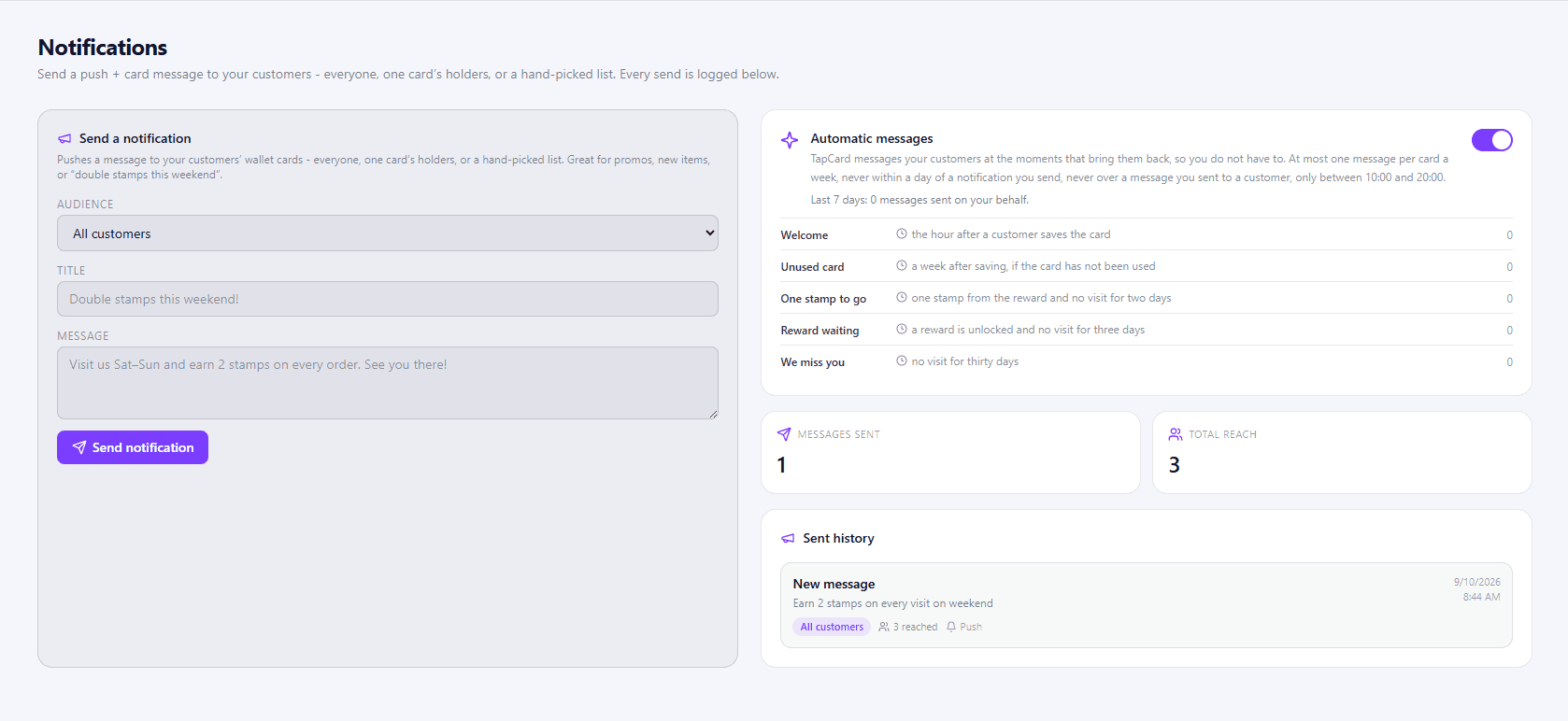
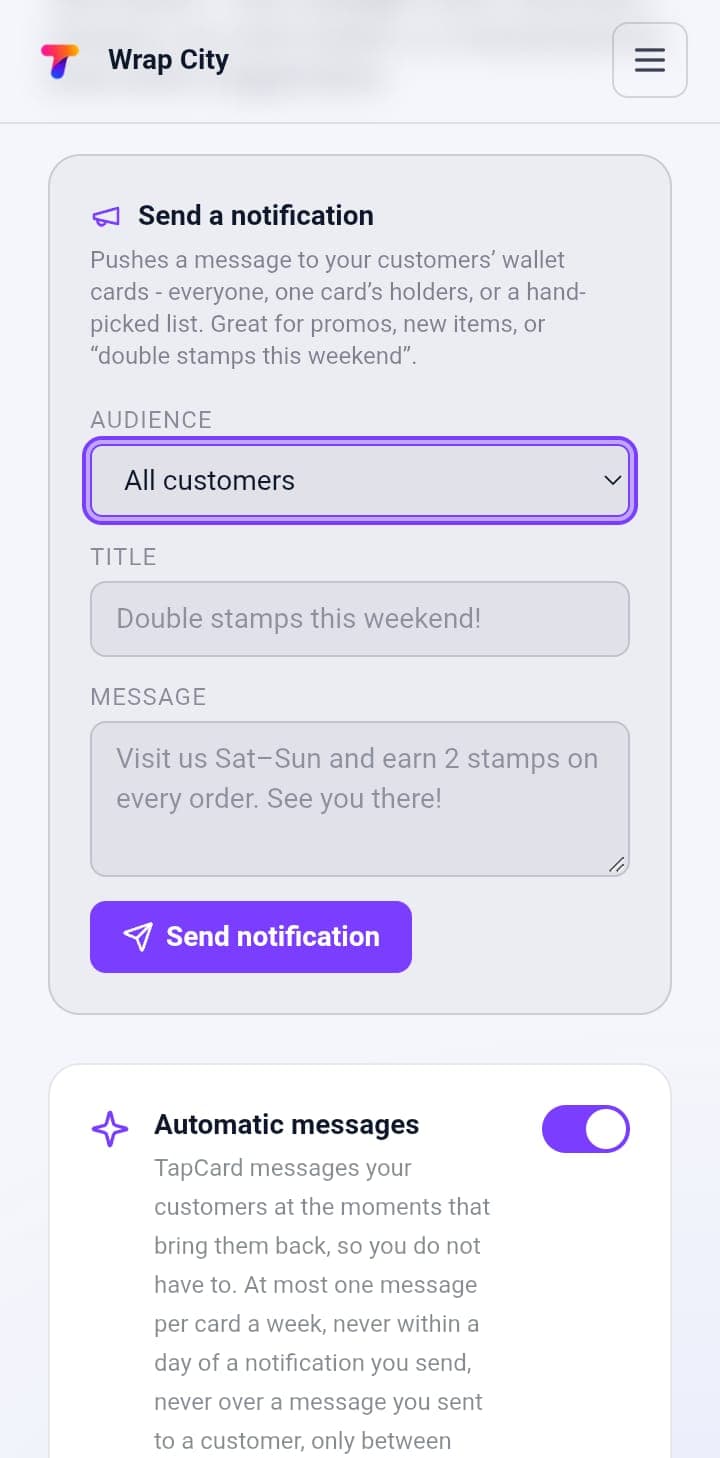
1Send a notification
- 1Choose your Audience
All customers, One card's holders, or A hand-picked list.
- 2Enter a Title
Short and clear, e.g. "Double stamps this weekend!"
- 3Write your Message
The details, e.g. "Visit us Sat–Sun and earn 2 stamps on every order. See you there!"
- 4Click Send notification
To message a few specific customers, you can also tick them on the Customers page and click Message selected. See Message your customers.
2Turn on automatic messages
Under Automatic messages, turn the toggle on. TapCard then sends these for you:
- Welcome - the hour after a customer saves the card.
- Unused card - a week after saving, if the card hasn't been used.
- One stamp to go - one stamp from the reward and no visit for two days.
- Reward waiting - a reward is unlocked and no visit for three days.
- We miss you - no visit for thirty days.
At most one automatic message per card a week, never within a day of a notification you send, never over a message you sent, and only between 10:00 and 20:00.
The section also shows how many automatic messages were sent in the last 7 days. Turn the toggle off to stop them.
3Check what you've sent
- Messages sent - how many notifications you've sent.
- Total reach - how many customers they reached.
- Sent history - every notification you've sent, with its title, message, date and time, audience and how many customers it reached.
What's next?
See how your program is doing: Business Insights.