
Business Insights
Use Overview, Analytics, Leaderboard and Sales to see how your loyalty program is doing.
Which page to use
- Overview - a quick snapshot of what's happening now.
- Analytics - trends and customer behaviour over time.
- Leaderboard - your top customers.
- Sales - the orders and amounts staff recorded when scanning.
- Overview
- Analytics
- Leaderboard
- Sales
1Overview
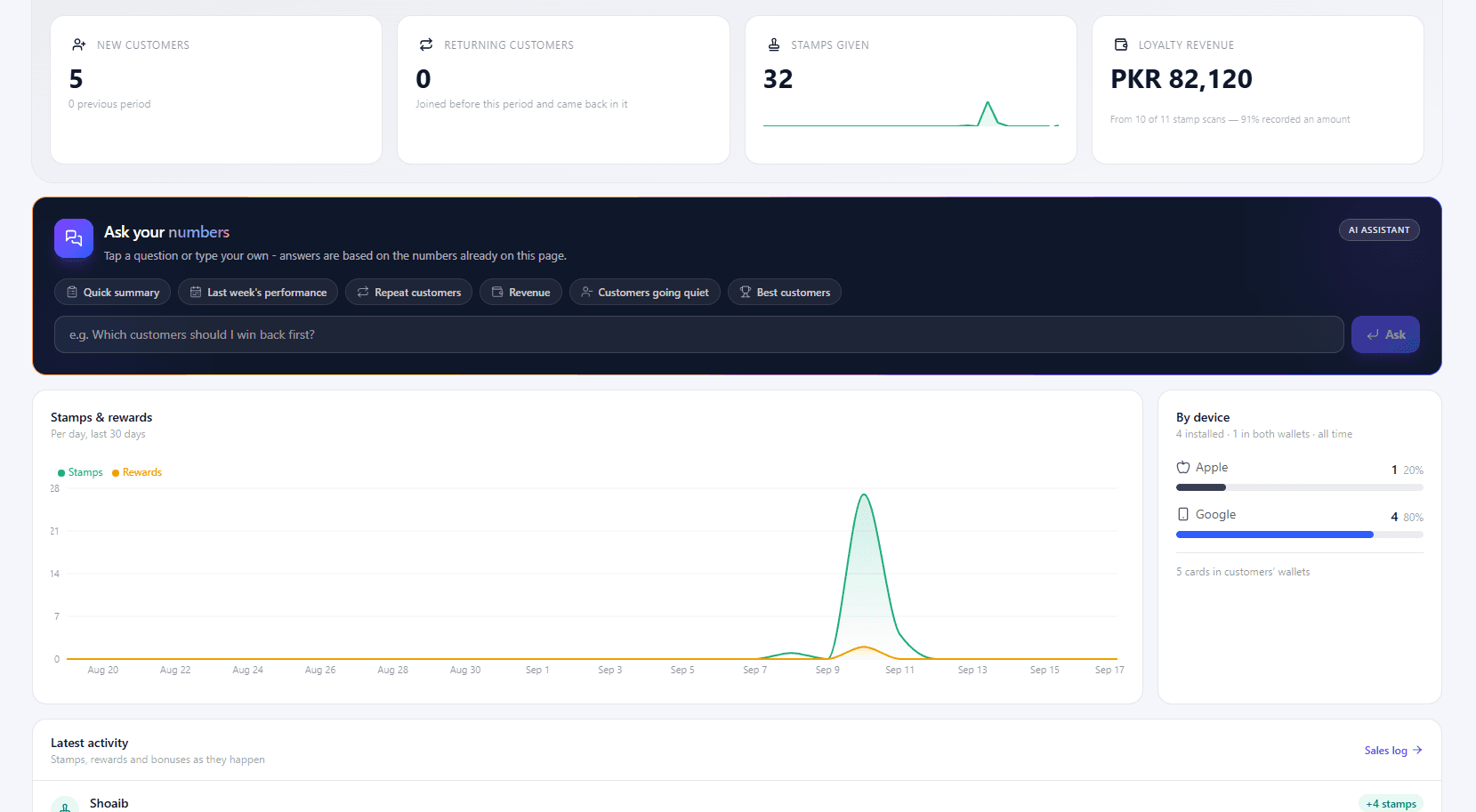
Your snapshot for the last 30 days. Open Overview from the dashboard menu.
- Top cards - New Customers, Returning Customers, Stamps Given and Loyalty Revenue.
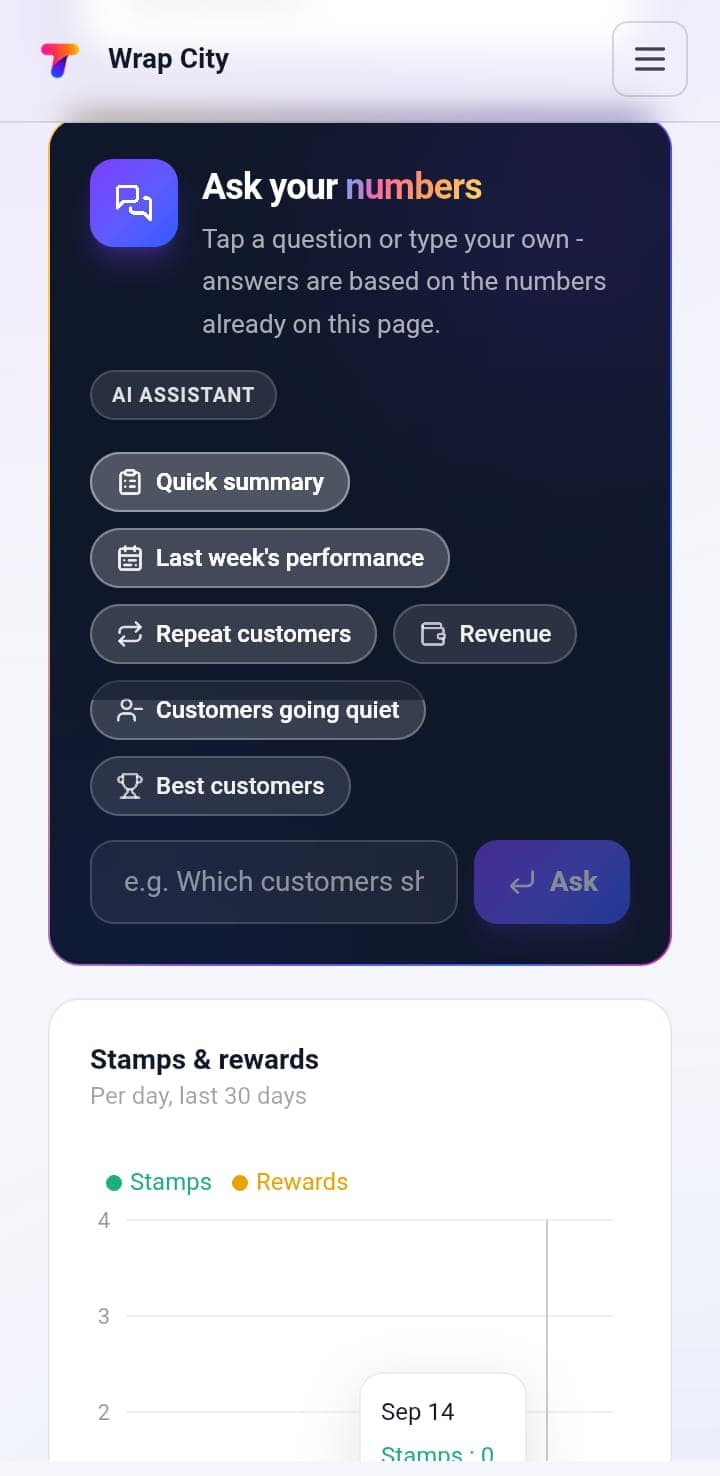
- Ask your numbers - tap a suggested question (e.g. Quick summary, Best customers) or type your own, then click Ask. Answers are based on the numbers on this page.
- Stamps & rewards - a chart of stamps and rewards per day.
- By device - how many cards are on Apple, Google or Both.
- Latest activity - stamps, rewards and bonuses as they happen, with a link to the Sales log.
- Get started - a checklist to finish setting up your program.
2Analytics
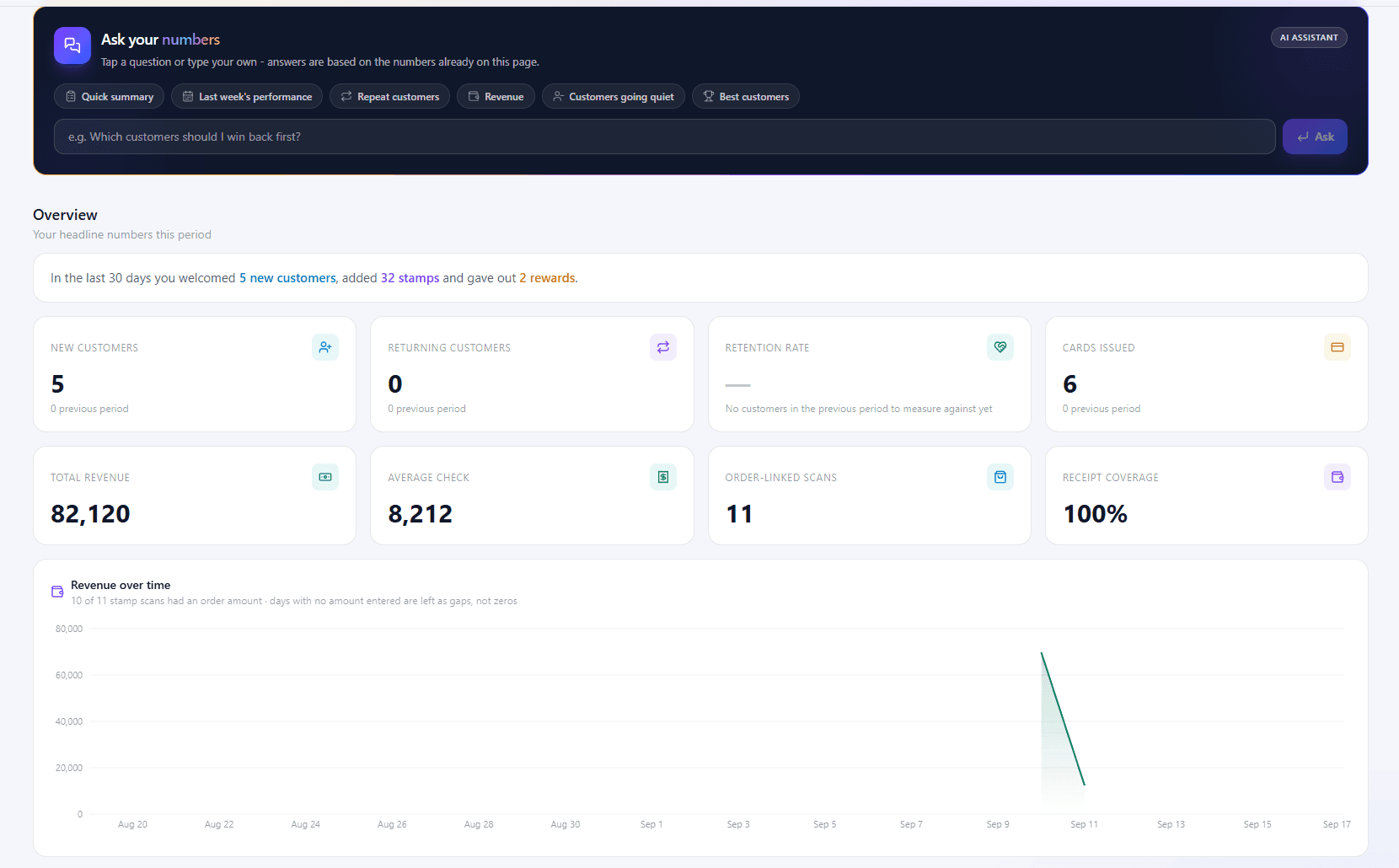
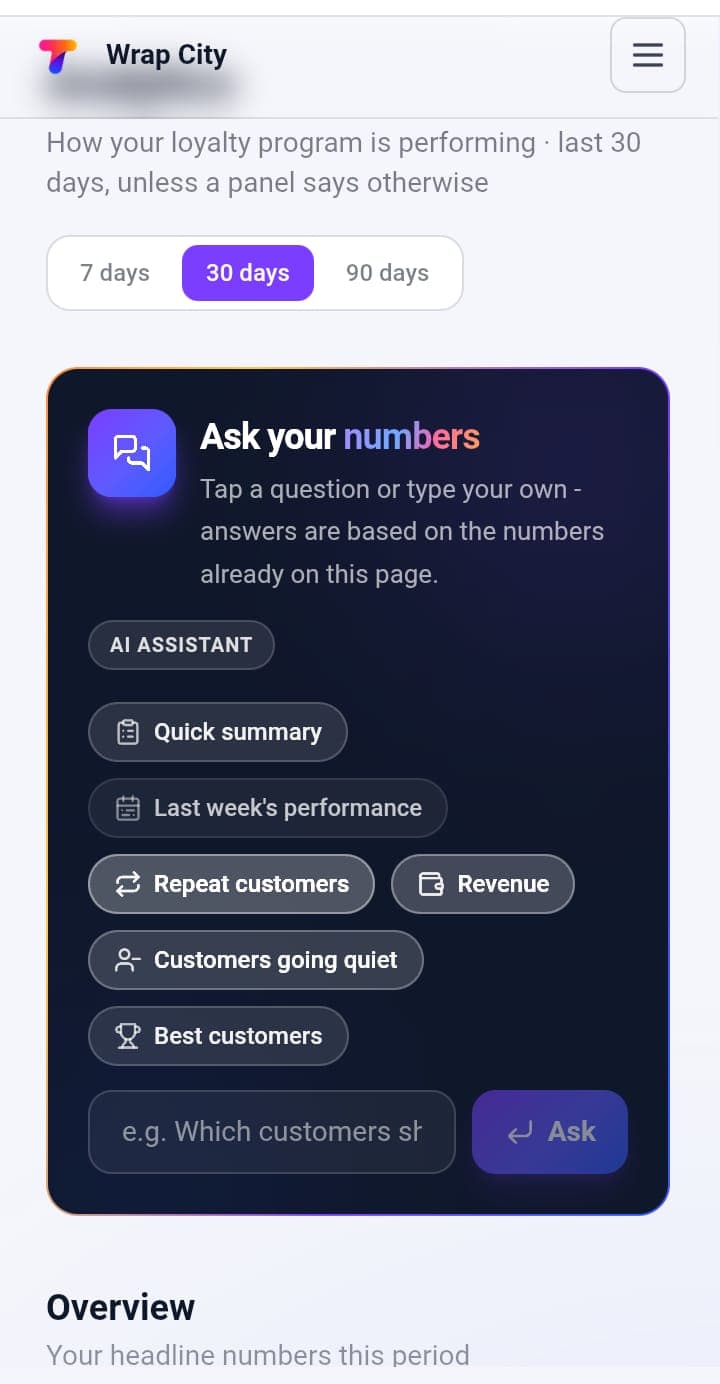
Deeper trends. Choose 7 days, 30 days or 90 days at the top.
- Overview - your headline numbers: New Customers, Returning Customers, Retention Rate, Cards Issued, Total Revenue, Average Check, Order-linked Scans and Receipt Coverage.
- Revenue over time - recorded revenue by day. Days with no amount entered show as gaps, not zeros.
- Activity - Stamps & rewards per day and New vs returning customers.
- Loyalty levels by card - how far customers are on your stamp cards: New, Collecting, Reward-ready or Champion. Age shows your customers' ages, where known.
- Top 10 customers - most stamps in this period.
- At-risk customers - customers with no stamp or reward in this period.
- Growth (all time) - referrals (Invites sent, Joined, Conversion) and cards (Cards ever issued, Installed, On Apple, On Google, On both). These don't change with the period you pick.
Customers going quiet? Pick them from At-risk customers and send them a message. See Message your customers.
3Leaderboard
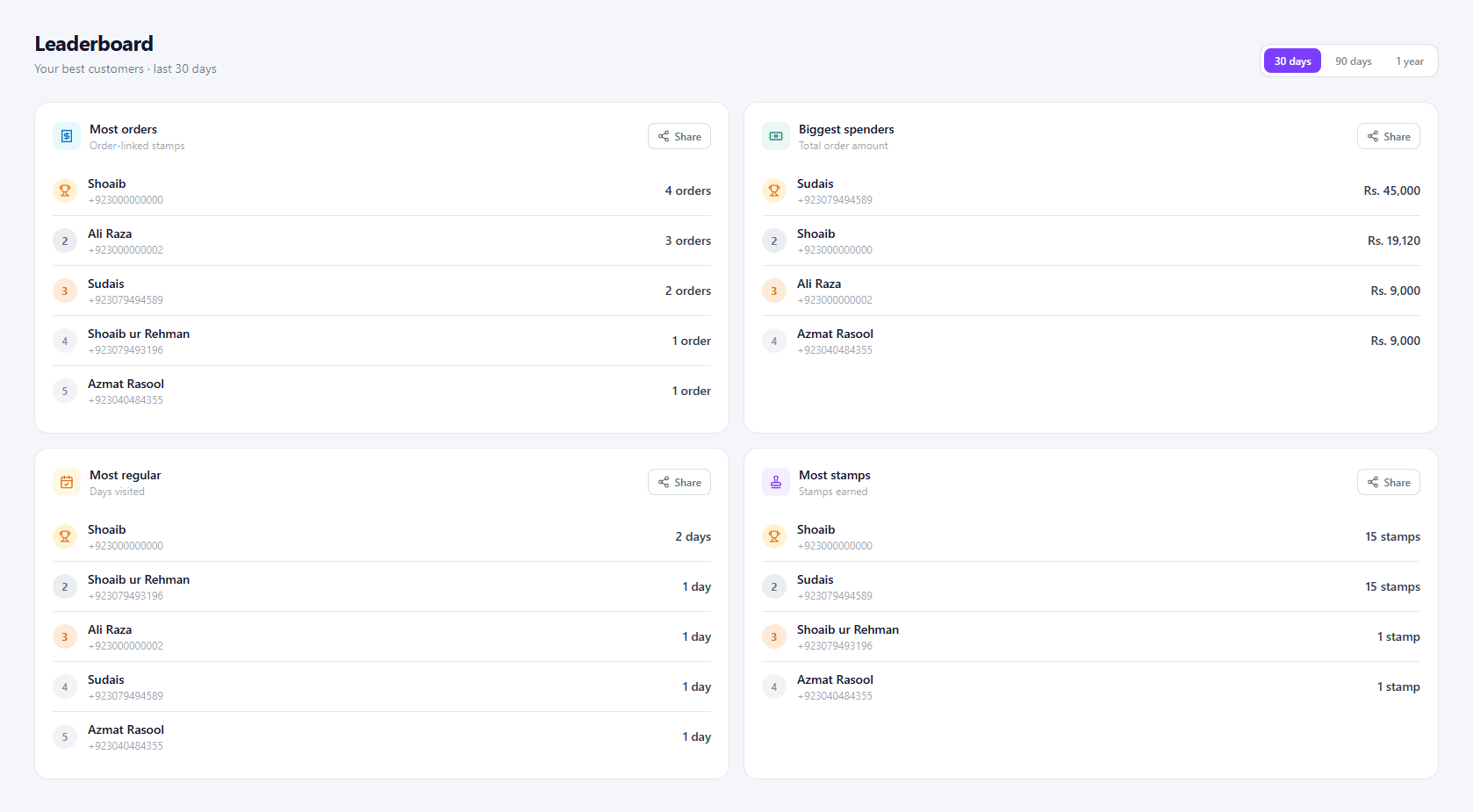
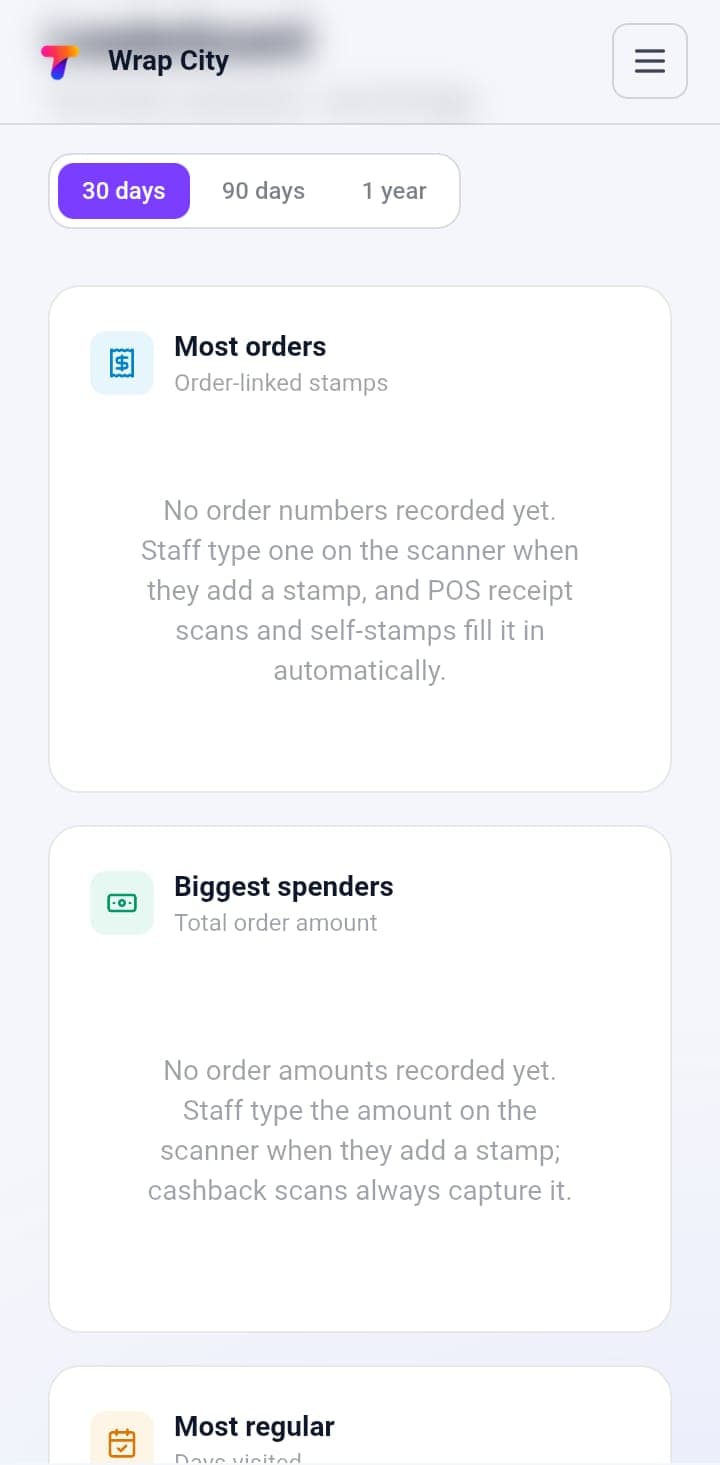
Your top customers. Choose 30 days, 90 days or 1 year.
- Most orders - order-linked stamps.
- Biggest spenders - total order amount.
- Most regular - days visited.
- Most stamps - stamps earned.
Each board has a Share button.
4Sales
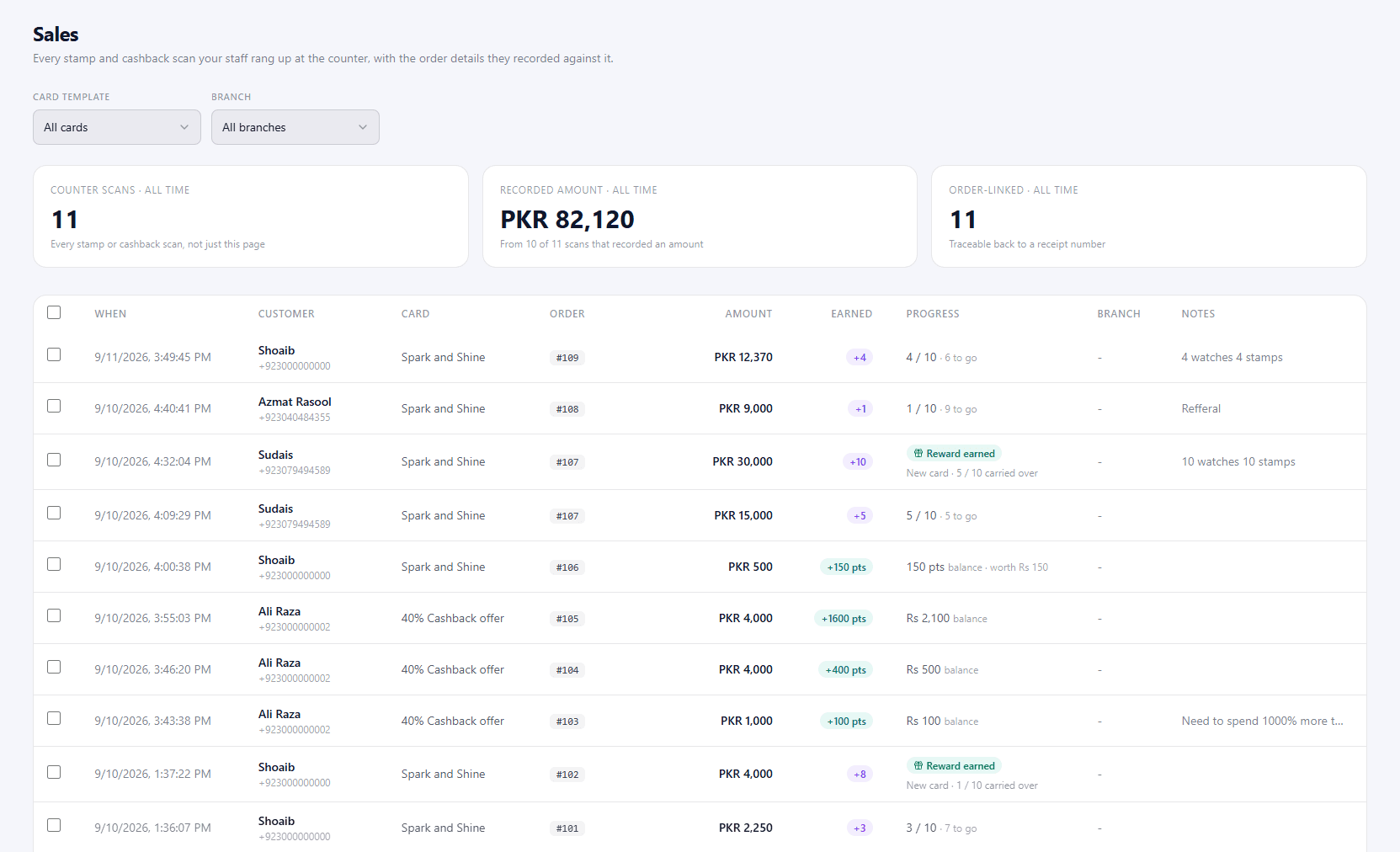
Every stamp and cashback scan your staff rang up at the counter, with the order details they recorded.
- Filters - narrow the list by Card template or Branch.
- Totals (all time) - Counter scans, Recorded amount and Order-linked.
- Table - each scan's When, Customer, Card, Order, Amount, what they Earned (e.g. stamps or points), their Progress, Branch and Notes.
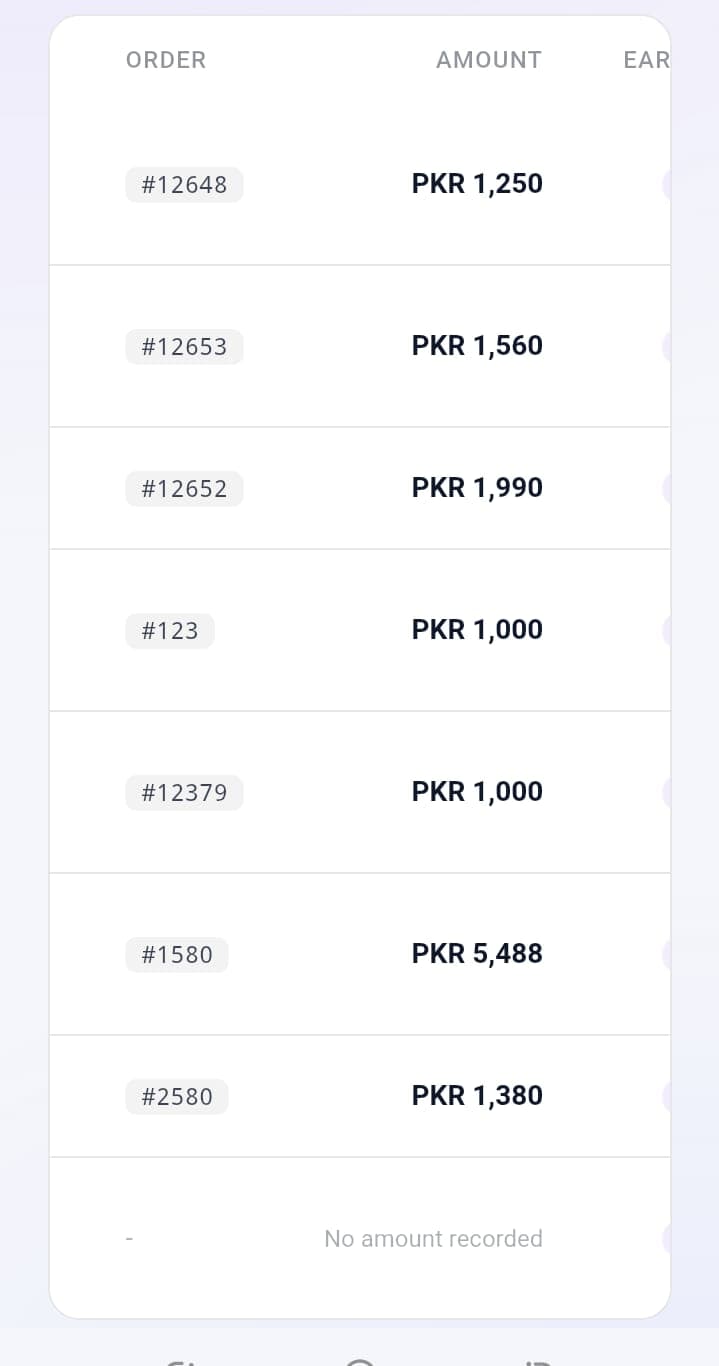
Sales only shows what staff enter when they scan - it isn't your full takings. To record every order, turn on Require an order number and Require an order amount in Staff settings.
What's next?
Found customers to reach out to? Manage Customers. Stuck on something? Get Help.