
Manage Your Cards
Edit a card, check whether it's live, or delete it.
2 min read
Edit a card
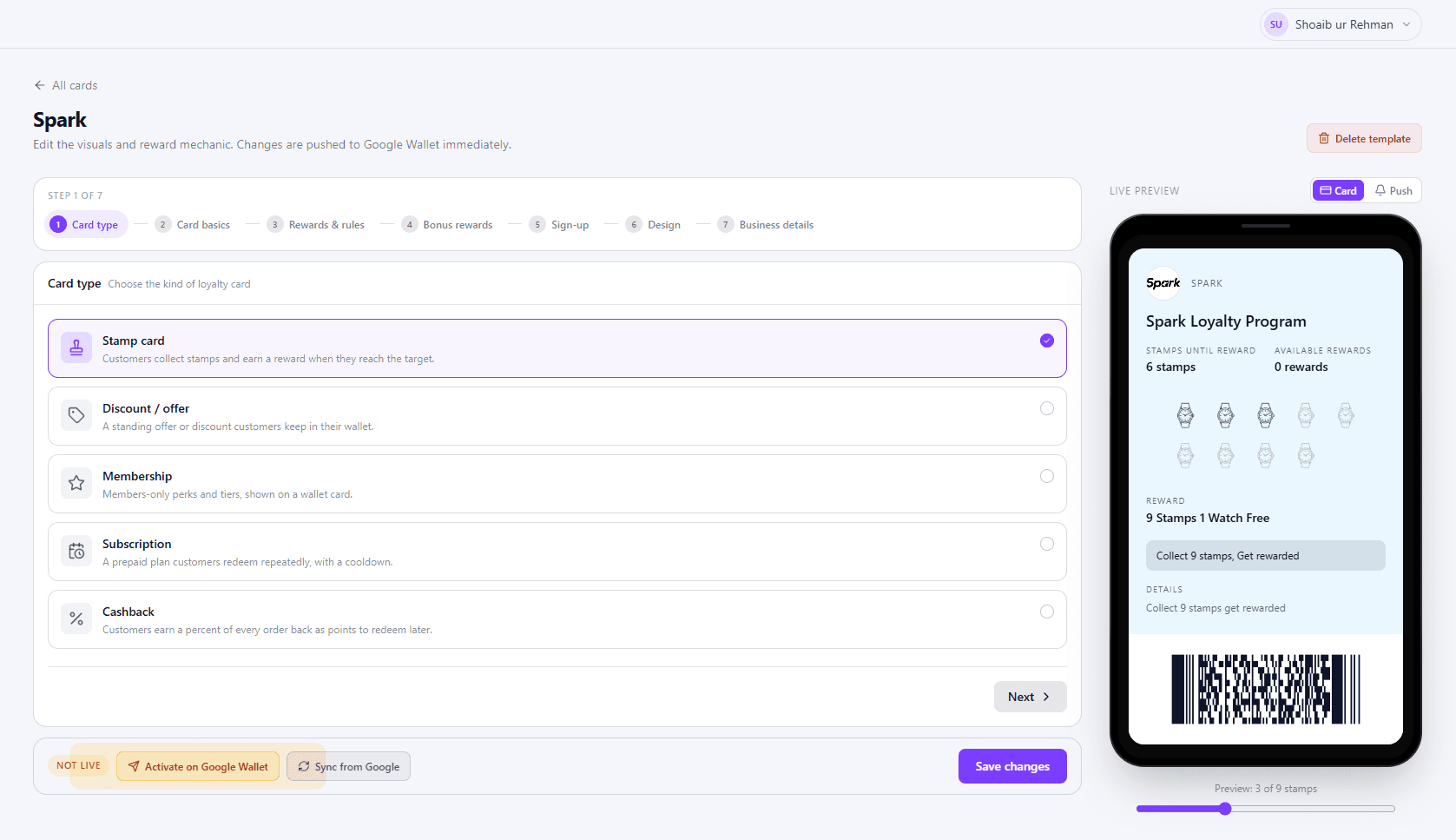
You can change most of a card after you create it, using the same 7 steps. See Create a Card for what each step does.
- 1Open Card templates
In the dashboard menu , select Card templates.
- 2Click Edit on the card
- 3Make your changes
Go to any step and change what you need.
- 4Click Save changes
- 5Click Sync from Google
Do this every time you edit a card.
Card status
Each card on Card templates shows badges:
- Live - the card is active on Google Wallet.
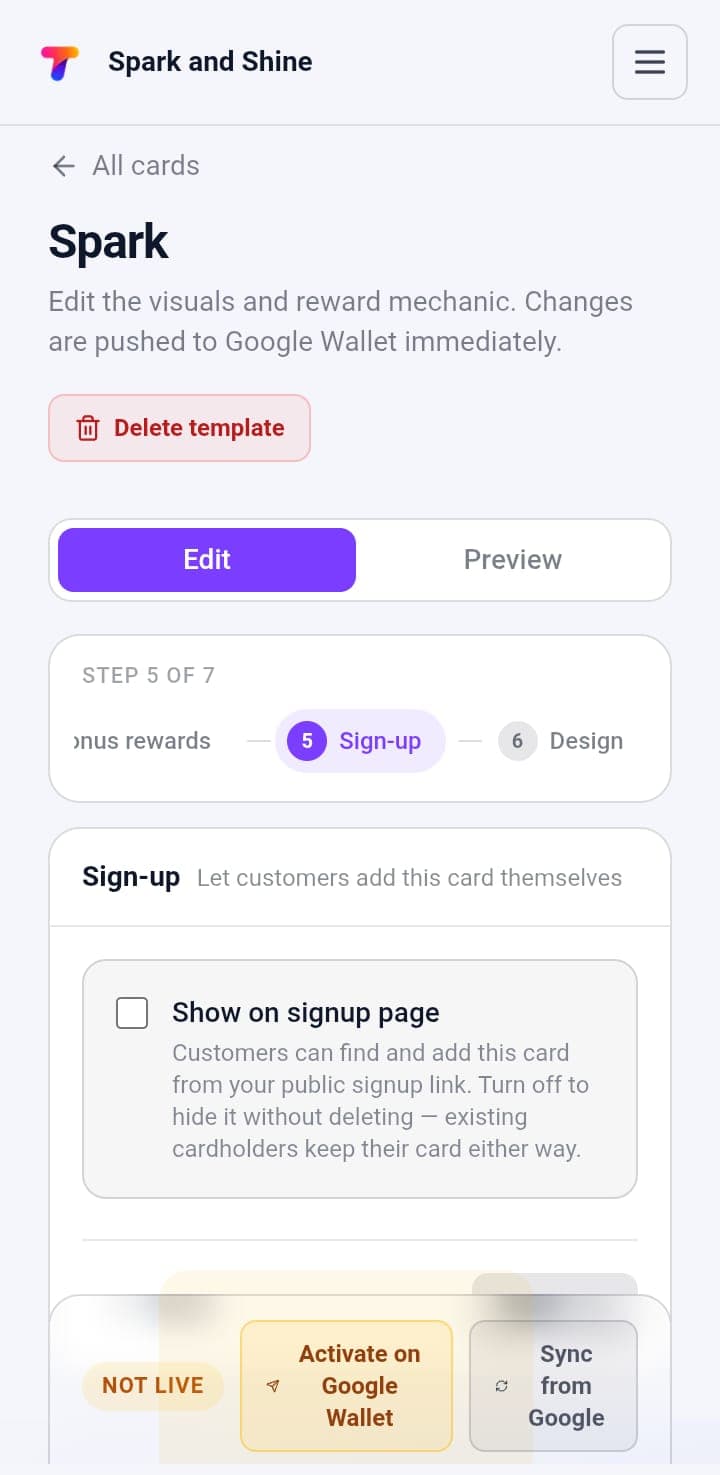
- Not live - the card isn't on Google Wallet yet. See Go live.
- Live on sign-up - customers can add the card from your signup page.
- Hidden - the card isn't shown on your signup page.
Delete a card
Click the bin icon on the card. Deleting it doesn't delete your customers' data - they keep their card in Apple Wallet or Google Wallet, and their stamps, rewards, cashback and history.
Tip
Only want to stop new customers joining? Turn off Show on signup page instead of deleting.
What's next?
Get your team ready to scan: Set Up Staff & Scanner.
Stuck on a step?
The TapCard team is happy to walk you through it.